
The Site Performance & Boundaries dashboard allows administrators to define exactly where enforcement should happen and set productivity goals for patrol officers. By combining visual geofencing with scan targets, you can ensure high-quality site coverage.
Before you can define scan targets or draw geofences, you must navigate to the Enforcement Management suite.
How to Navigate to Settings
Sidebar Menu: Locate and click on the Enforcement tab in the main navigation sidebar.
Settings Selection: From the expanded Enforcement menu, select Enforcement Settings.
Site Selection: Use the Select Site list on the left to choose the specific property you wish to configure (e.g., 16th & Market Apartments).
1. Setting Audit Targets (Vehicle Scans)
Performance is measured by the volume of active vehicle audits performed within a specific timeframe.
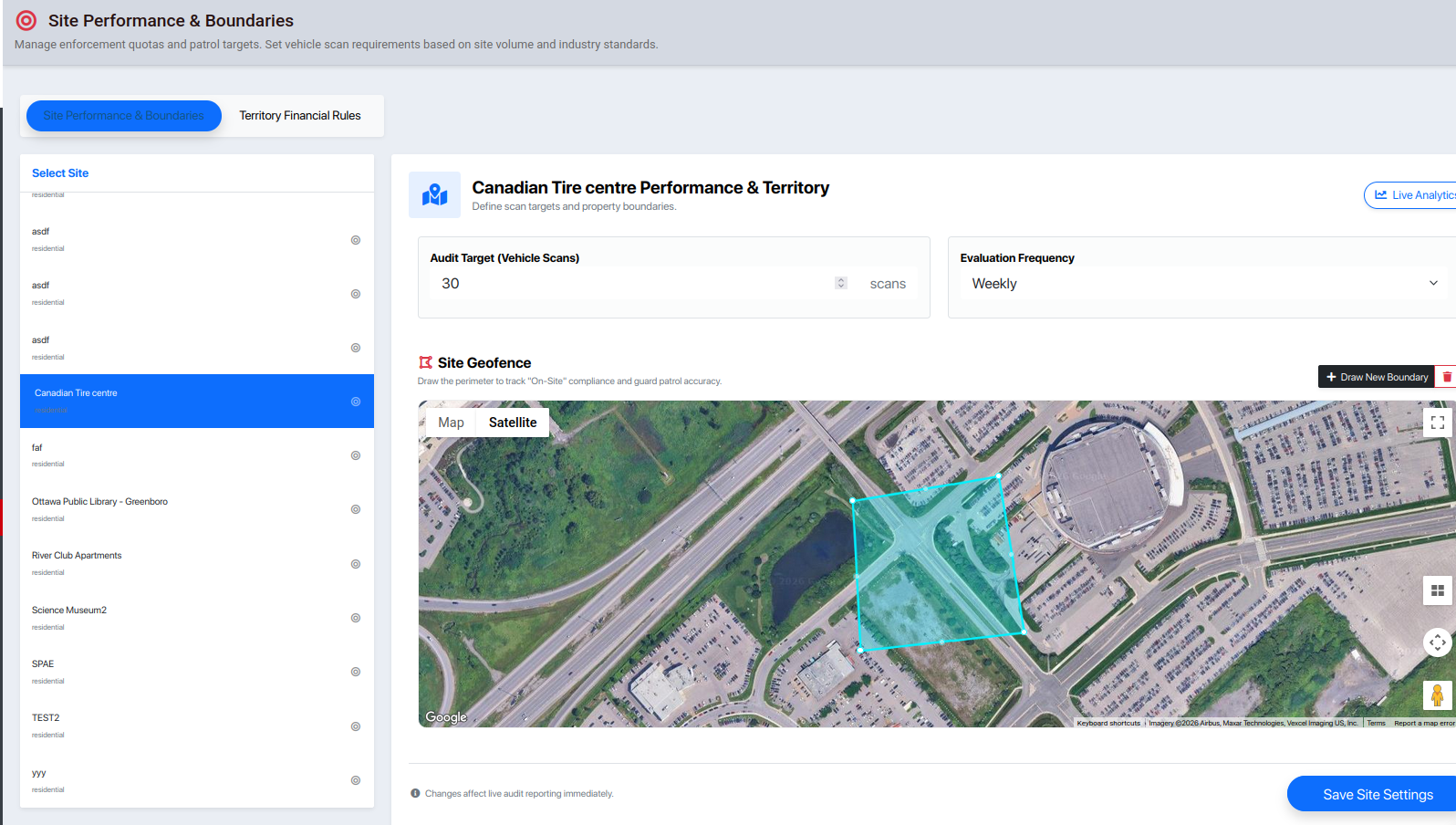
Audit Target: Enter the number of unique vehicle scans required per evaluation period.
Evaluation Frequency: Choose how often these targets reset (e.g., Weekly, Daily, or Monthly).
Example: Setting a target of 100 scans "Weekly" means the system will track the guard's progress toward auditing 100 license plates every 7 days.
2. Defining the Site Geofence
The Site Geofence is the most critical setting for accurate enforcement. It creates a digital perimeter around your property.
Why Geofencing Matters:
On-Site Compliance: When a guard performs a search, the system compares their captured GPS coordinates against this boundary.
Patrol Accuracy: Management can filter reports to see which audits were performed "Inside" vs. "Outside" the designated territory.
How to Draw a New Boundary:
Navigate to the map area for your selected site.
Click the + Draw New Boundary button.
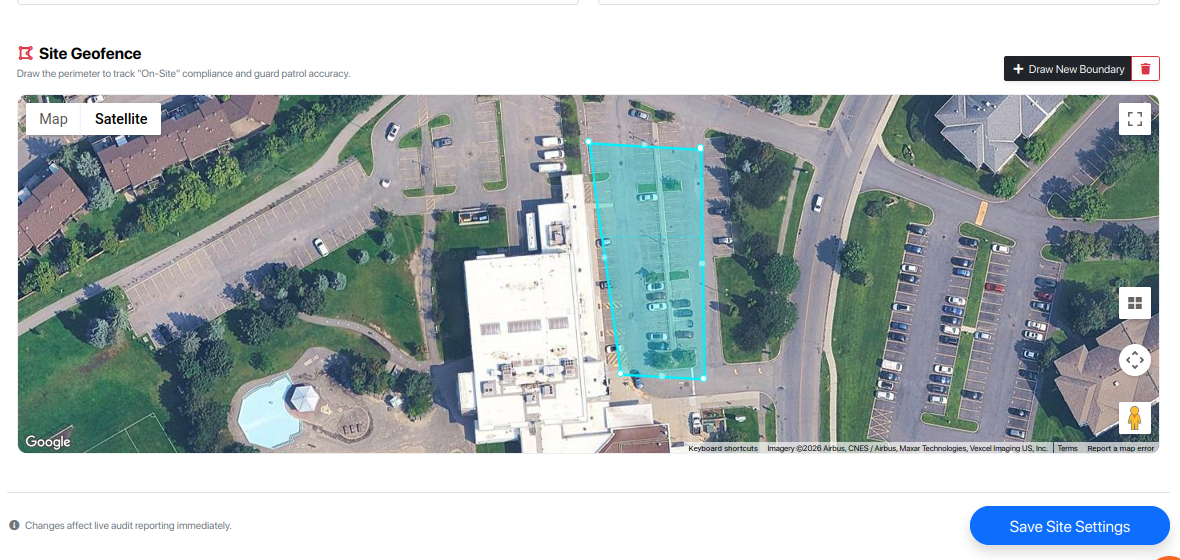
Click on the map to place "pins" around the property lines. Connect the last pin to the first to close the shape.
Audits performed inside this polygon will be marked as "On-Site."
3. Real-Time Tracking & Boundaries
Once a geofence is active, the data we capture latitude, longitude, and accuracy are automatically compared against this map.
Live Analytics: Use the "Live Analytics" button in the top right to see a heatmap of where scans are currently occurring.
Territory Integrity: If scans are consistently appearing outside the red boundary, it may indicate a guard is patrolling the wrong area or that the geofence needs adjustment.
Pro-Tip for Accuracy
When drawing boundaries, include the entrances and exits of the parking lots. Since GPS can have a slight "drift" (especially near tall buildings), a slightly wider boundary is often better than one that is too tight.