
This article is designed to guide you through the key changes and new features regarding Auditing. Focusing on the evolution of the audit screen, the new Manual Search function, and how to easily check the details of a parking pass.
The Evolution of the Audit Screen
The audit screen has been significantly updated to provide a more intuitive and efficient user experience. These changes aim to streamline the process of reviewing lot activity and managing data integrity.
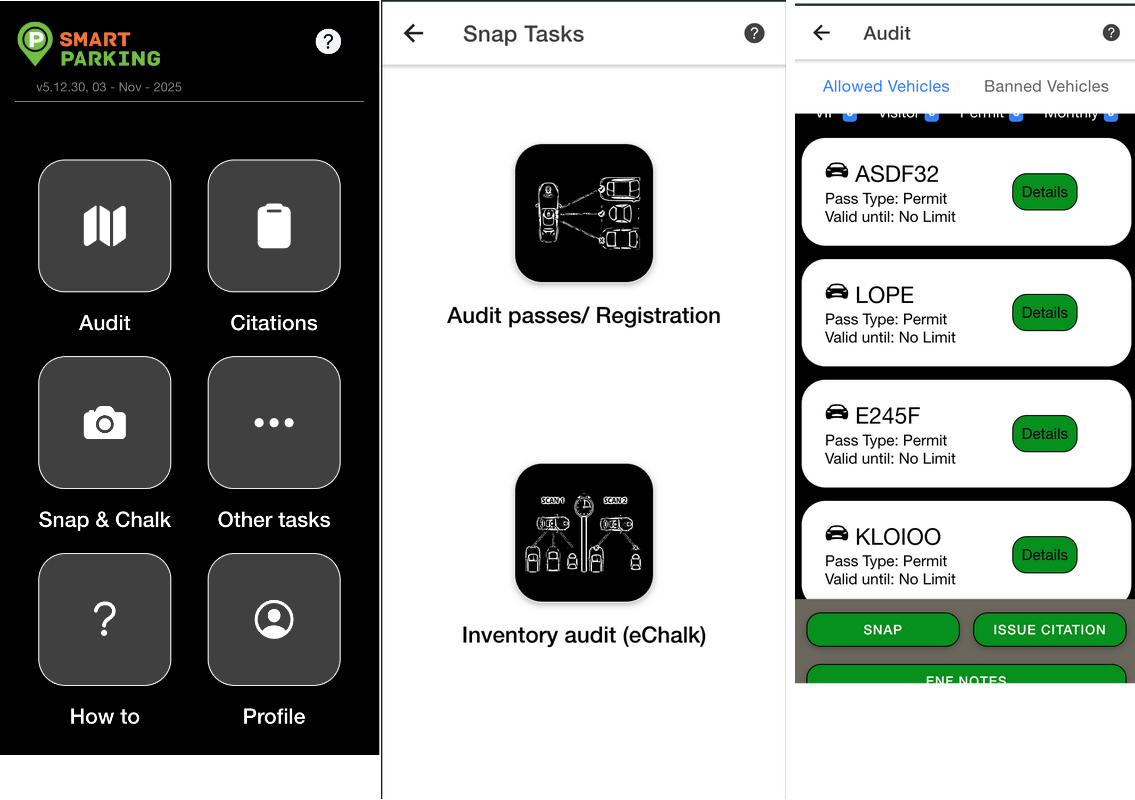
Previously, the auditing process was divided across multiple screens: Audit (for listing or auditing passes) and Snap & Chalk (for Echalk in the Snap). This old system was functional but often required more steps to access critical information, and the interface was focused on searching plate for limited information.
Old Audit Screens
The previous version of the audit screen was functional but often required more steps to access critical information.
The key differences are all the functionalities are renamed as a mode and the previous Audit screen renamed to Inventory mode.
New Audit Screens
The new audit screen features a modernized design, improved navigation, and more comprehensive filtering options. Key changes include:
Combined screen for all types of Auditing: New screen will show all the audit screens under Audit page that includes Inventory mode, Search mode, Snap LPR, E-chalk.
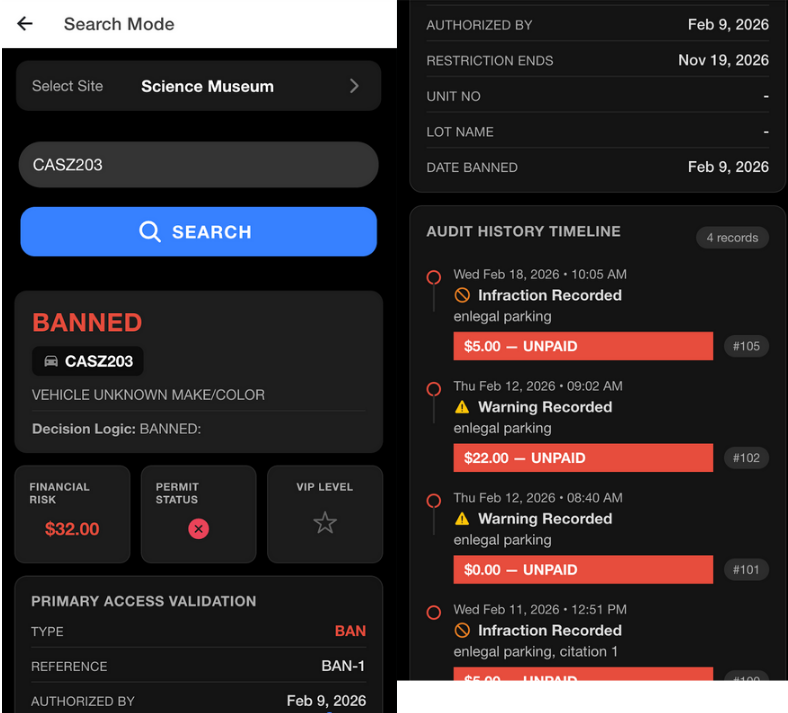
Search Mode: This new screen will allow Guards to search all the vehicles without any site restrictions. It will show all the information related to a particular vehicle even if the vehicle is not being registered under a site.
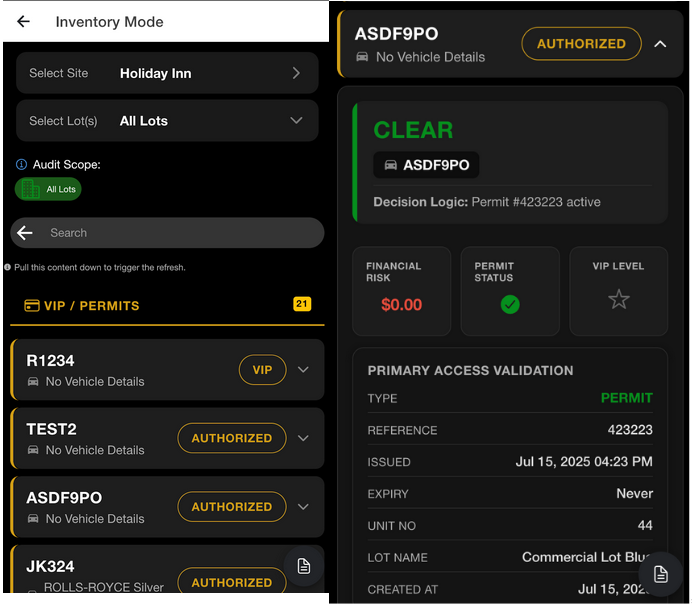
Detailed View: This is a similar looking view for Inventory mode and the manual search mode.
It will contain all the information such as financial risk, permit status, vip level, all the unpaid infraction amount and warnings.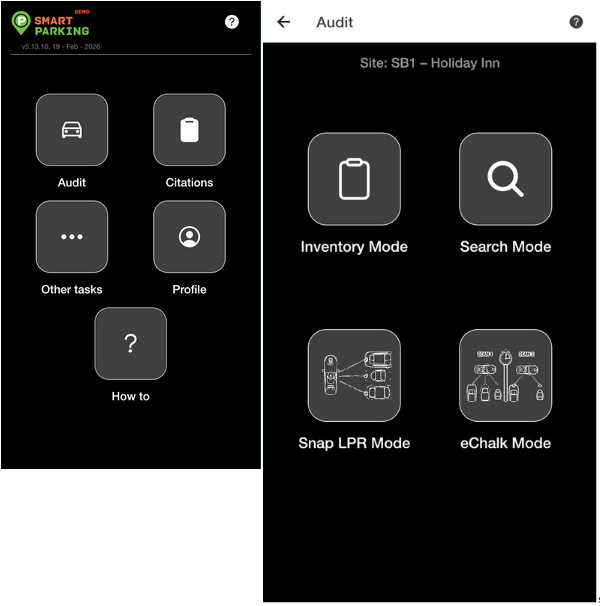
To ensure the highest level of security and compliance, the Audit module provides four distinct ways to verify vehicles. Note: Every time you use any of these modes, the system logs your GPS location, the time, and the vehicle identified. This data proves you have completed a full patrol of the territory.
1. Inventory Mode
Best For: Routine patrols in residential or permit-only lots where you recognize the vehicles.
How it works: This mode displays a live digital list of all vehicles currently authorized for the site (VIPs, Residents, and active Visitors).
The Workflow: As you walk the lot, compare the physical cars to the list. Tap the vehicle card on your screen to "Check-in" that car.
The Tracking: Tapping a vehicle updates its "Last Seen" timestamp. If a vehicle hasn't been tapped in 24 hours, management knows that specific corner of the lot wasn't patrolled.
2. Search Mode (Manual Entry)
Best For: Verifying a single suspicious vehicle or plates that are hard to read (dirty, snow-covered, or custom fonts).
How it works: A manual keyboard entry mode.
The Workflow: Type the license plate OR permit number (numbers and letters only). The app auto-cleans the text (no spaces or hyphens needed). Press Search to pull the vehicle's full history, including past citations and "Banned" status.
The Tracking: Every search is a "Hard Audit." Even if you don't issue a ticket, the search itself is saved as a security check-point in your shift report.
3. Snap LPR Mode (Camera Scan)
Best For: High-volume lots, drive-thru patrols, and night shifts.
How it works: Uses your phone's camera as a high-speed scanner (License Plate Recognition).
The Workflow: Point the camera at the plate. The system instantly "snaps" the image, reads the text, and runs the audit. You can use Auto-Scan to audit cars as fast as you can walk or drive past them.
The Tracking: This is the most efficient tracking method. It saves a photo of the vehicle along with the location data, providing undeniable proof of the vehicle's presence at that moment.
4. eChalk Mode (Time-Limit Tracking)
Best For: Short-term visitor parking, commercial loading zones, or "15-minute" retail spots.
How it works: A digital version of "chalking a tire." It tracks how long a vehicle stays in one spot.
The Workflow: Scan or enter a plate when you first see it. The system "marks" the time. When you return for your next round, the system will alert you if that vehicle has exceeded the allowed time limit.
The Tracking: This mode tracks duration. It proves you did multiple rounds of the property at consistent intervals.
Below is a comparison of the old and new screen layouts:
Feature | Old Audit Screens | New Audit Screens |
|---|---|---|
Interface Focus | Tabular data | Enhanced graphical and tabular data |
Filtering | Basic options | Comprehensive, multi-criteria filtering |
Detail Access | Separate page navigation | Side panel view |
Performance | Slower with large logs | Optimized for speed and efficiency |