
This article explains how Barnacle parking enforcement works end-to-end in our platform — from issuing a citation, to payment and Barnacle release, to device return and internal management.
It is intended for:
🚗 Motorists / Vehicle owners
🛡️ Guards
🏢 Managers & administrators
Overview: What Is a Barnacle?
The Barnacle is a windshield-mounted immobilization device used to enforce parking violations. In our system, the Barnacle is fully integrated with citations, payments, deposits, notifications, and device tracking.
1. Creating a Citation (Guard Workflow)
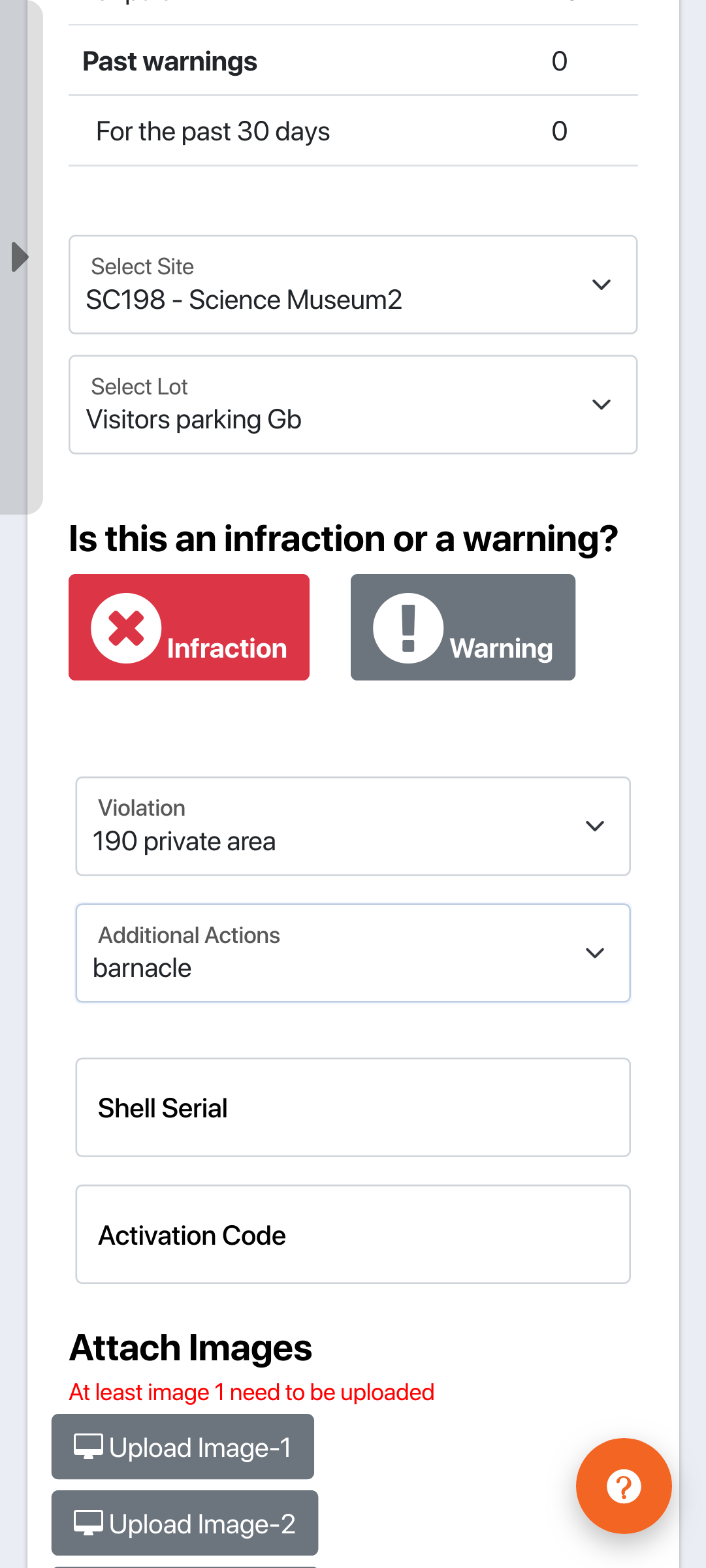
The Barnacle process starts when a guard creates a citation in the enforcement app.
What happens:
Guard creates a citation as usual.
If a Barnacle is applied, the guard:
Selects the Barnacle option
Assigns the Barnacle shell (serial number)
Confirms deposit and admin fee rules
The citation is saved with Barnacle details attached.
Once created:
The citation becomes payable online
The Barnacle shell is tracked in the system
Managers receive notification emails
2. Paying a Citation (Motorist)
When a citation is issued, motorists can pay online.
If a Barnacle is attached, payment generates the release code.
How to Pay
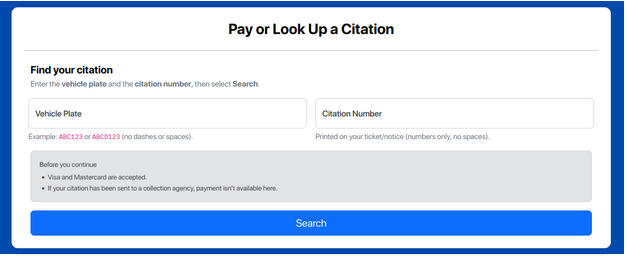
Visit the citation payment page:
Enter:
Plate number
Citation number
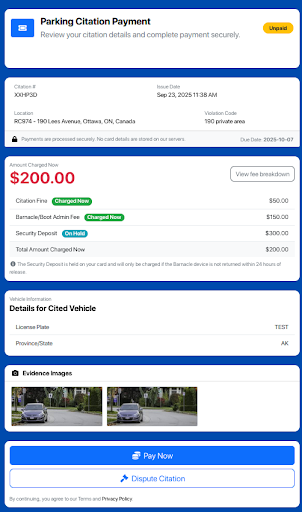
Review citation details and fees:
Citation fine
Barnacle admin fee (if applicable)
Security deposit (authorization hold)
Enter payment details (credit/debit card)
Submit payment
What Happens Next
Payment is processed securely
A receipt page is shown
A Barnacle release code is displayed
A security deposit is placed on hold (not charged)
A receipt email is sent (includes the release code)
3. Viewing the Payment Receipt
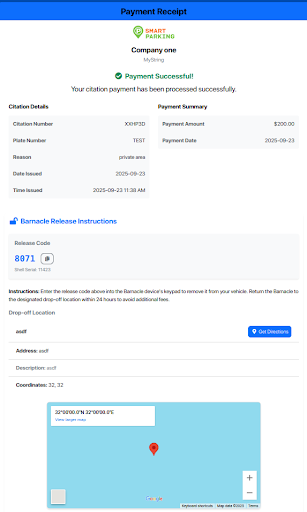
After payment, the receipt page appears automatically.
What You’ll See on the Receipt
Company information (logo, name, address)
Payment confirmation (“Payment Successful”)
Citation details (plate, violation, date/time)
Payment summary
Barnacle release section (if used):
Release code (with copy button)
Barnacle shell serial
Step-by-step unlock instructions
Drop-off location details:
Name & address
Description and notes
Embedded Google Map
“Get Directions” button
QR code for navigation
Security deposit notice
Actions:
Print receipt
Back to home
💡 Tips
Print the receipt for records (maps/buttons won’t print)
Use the QR code on mobile for quick navigation
4. Releasing & Returning the Barnacle (Motorist)
Step 1: Release the Barnacle
Locate the Barnacle on your windshield
Enter the release code from:
Receipt page
Email receipt
The Barnacle unlocks and can be removed
Step 2: Return the Barnacle
Go to the drop-off location shown on the receipt
Use:
Embedded map
“Get Directions”
QR code
Return the device within 24 hours
Security Deposit Rules
Returned within 24 hours → deposit released automatically
Not returned → deposit is charged (forfeited)
Once staff check in the device, the system updates automatically.
5. Email Notifications (Motorist)
After payment, you’ll receive an email receipt.
Email includes:
Payment confirmation
Citation details
Barnacle shell serial
Release code
Return instructions
Drop-off location
Security deposit notice
QR code and directions link
📌 Tip: Check your spam folder if you don’t see it.
6. For Guards: Managing Barnacle Devices
Guards manage released Barnacles directly in the app.
How to Access
Log in as a guard
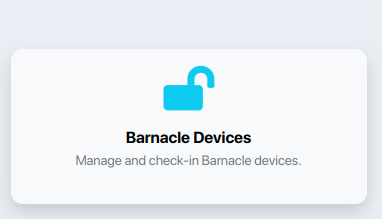
From the dashboard, click Barnacle Devices
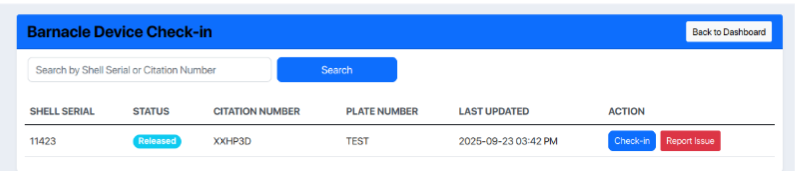
View all Barnacles awaiting check-in or action
Check-In a Barnacle
Select Check In
Submit the form
Device status updates
Deposit is released (if applicable)
Report an Issue
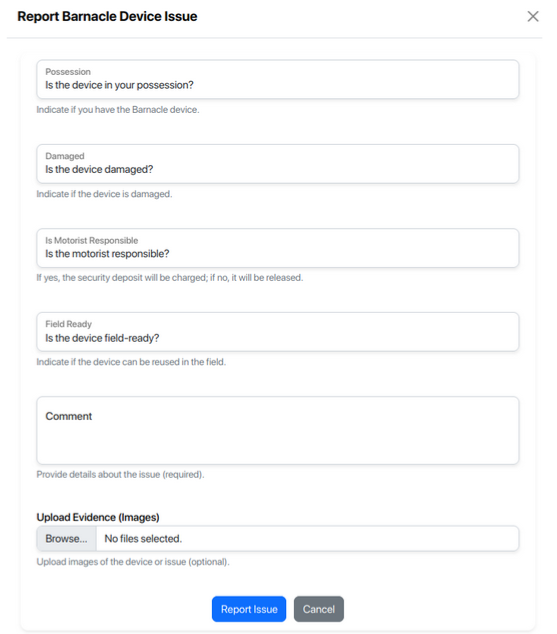
Select Report Issue
Provide details:
Possession status
Damage
Motorist responsibility
Field readiness
Comments & photos
Choose drop-off location
Submit to resolve and apply deposit rules
7. Drop-Off Location Management (Guards & Managers)
Drop-off locations are managed in the dashboard:
Path:
Integrations → Barnacle → Manage → Drop-off Locations
View all locations
Add new locations (guard-only)
Only the closest location is shown to motorists