
The Citation Report provides a powerful overview of all enforcement citations issued across your properties. It allows managers and administrators to search, filter, analyze, and export citation data to better understand enforcement activity and revenue.
Using this report, you can quickly identify unpaid citations, monitor officer activity, review violations, and export data for accounting or reporting.
How to Access the Citation Report
To open the Citation Report:
From the left sidebar menu, click Reports.
Select Enforcement Reports.
From Citation Report, Click Open Report.
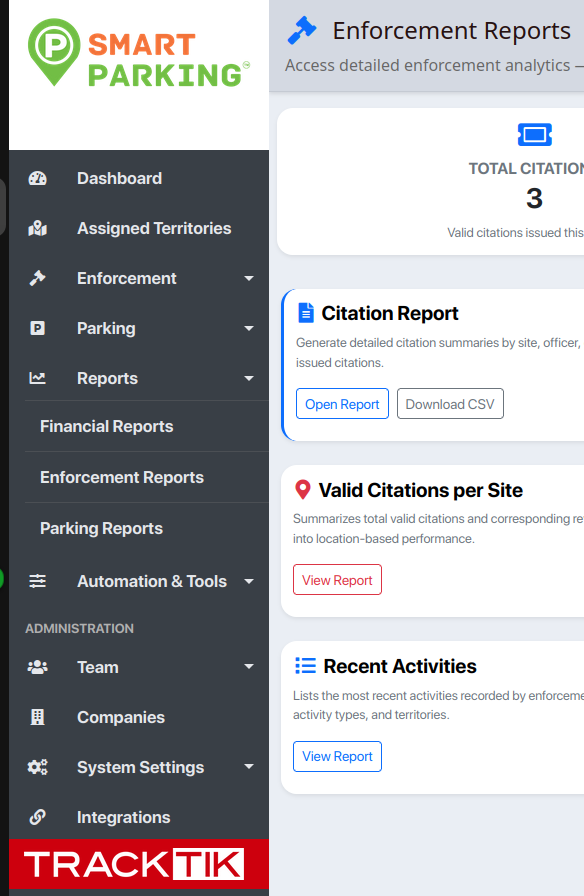
Overview of the Citation Report
The Citation Report contains several sections:
Export Options
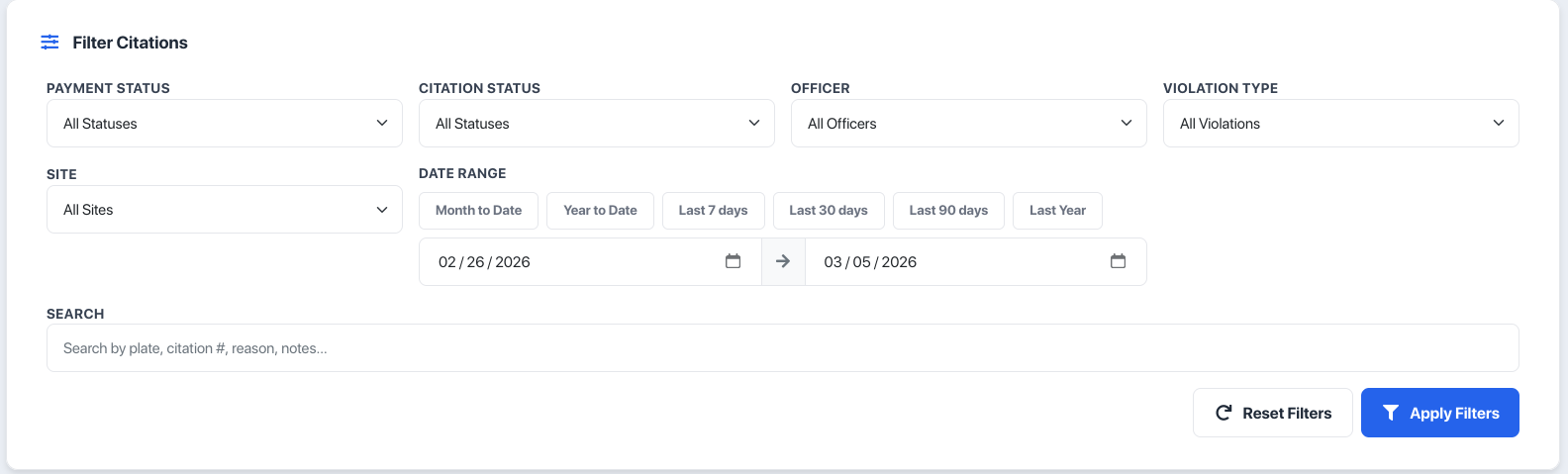
Filters
Quick Date Ranges
Metrics Summary
Citation Table
Citation Media Viewer
Each section helps you analyze enforcement data efficiently.
Exporting Citation Reports
You can export the filtered report into multiple formats.
Export Formats Available
CSV – Best for spreadsheets and external analysis
Excel (.xlsx) – Ideal for financial or operational reporting
PDF – Useful for sharing reports or record keeping
To export:
Click the Export button in the top right.
Select the desired format.
💡 Tip:
Exports respect the active filters, meaning you will only export the data currently displayed.
Filtering Citations
The report includes advanced filters to quickly narrow down results.
Available filters include:
Payment Status
Filter citations based on payment status:
Paid
Unpaid
Cancelled
Citation Status
Filter by internal citation status such as:
Pending
Approved
Cancelled
Other configured statuses
Officer
Filter citations issued by a specific enforcement officer.
Violation Type
Filter citations based on the violation rule applied.
Site
View citations from a specific property or parking site.
Date Range
Filter citations issued within a specific time period.
Quick Date Range Buttons
To quickly analyze common timeframes, you can use the Quick Range buttons.
Available options include:
Month to Date
Year to Date
Last 7 Days
Last 30 Days
Last 90 Days
Last Year
Clicking one of these buttons will automatically update the date fields and refresh the report.

Search Function
The search field allows you to quickly find citations using keywords.
You can search by:
License plate
Citation number
Violation reason
Citation notes

Summary Metrics
At the top of the report, several summary cards provide an overview of enforcement performance.
Total Citations
Displays the total number of citations within the selected filters.
Paid Citations
Shows how many citations have been successfully paid.
Unpaid Citations
Shows outstanding citations requiring payment.
Total Revenue
Displays the total collected revenue from citations.

These metrics automatically update whenever filters are applied.
Citation Table
The main report table lists all citations matching your filters.
Each row includes the following information:
Column | Description |
|---|---|
Citation # | Unique citation identifier (clickable to view details) |
Site | The property where the citation was issued |
License Plate | Vehicle plate number and province |
Violation | The violation rule triggered |
Fee | Total citation amount |
Payment | Paid / Unpaid status |
Status | Current citation status |
Officer | Enforcement officer who issued the citation |
Issued | Date the citation was created |
Media | Button to view citation images |
Viewing Citation Details
Click the Citation Number to open the full citation record.
This allows you to see:
Citation details
Violation information
Vehicle information
Payment details
Attached evidence
Viewing Citation Images
If an officer attached photos when issuing the citation, you can view them directly from the report.
To view images:
Click the Images icon in the Media column.
A popup window will open displaying the photos.
These images are typically captured from:
Mobile enforcement app
LPR systems
Manual evidence uploads
Resetting Filters
To clear all filters and start a new search:
Click Reset Filters.
The report will reload with default settings.
Best Practices
To get the most out of the Citation Report:
✔ Use date filters to analyze enforcement trends
✔ Monitor unpaid citations regularly
✔ Export monthly reports for financial reconciliation
✔ Review officer activity using the officer filter
✔ Use search to quickly locate specific citations