
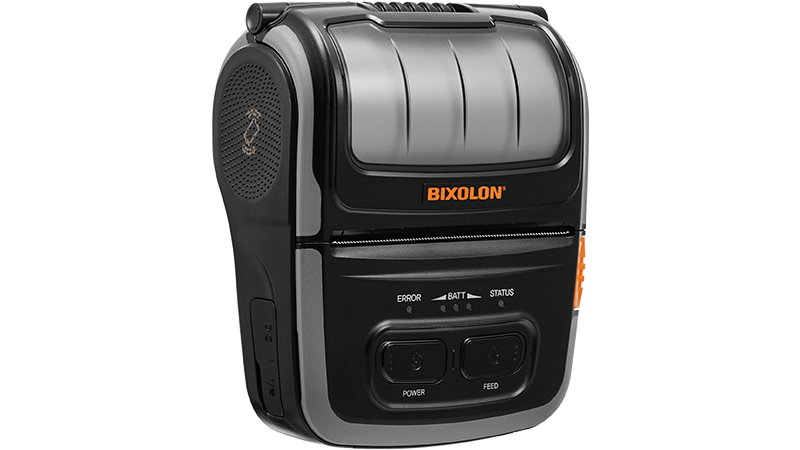
This guide explains how to pair the Bixolon SPP-R310 or Bixolon SPP-R410 handheld printer with the Enforcement Mobile App and print citations directly from the app.
Supported Printer Models
The Enforcement Mobile App is compatible with the following Bixolon printers:
Bixolon SPP-310
Bixolon SPP-R410
Both models use Bluetooth connectivity and direct thermal printing (no ink or toner required).
1. Pairing the Printer via Bluetooth
Before printing citations, the printer must be paired with your mobile device.
Steps
Power on the Bixolon SPP-R310 or Bixolon SPP-R410 printer.
On your mobile device, open Bluetooth Settings.
Search for available Bluetooth devices.
Select Bixolon SPP-R310 OR Bixolon SPP-R410 from the list.
When prompted, enter the default pairing PIN:
0000Confirm that the printer shows as Connected.
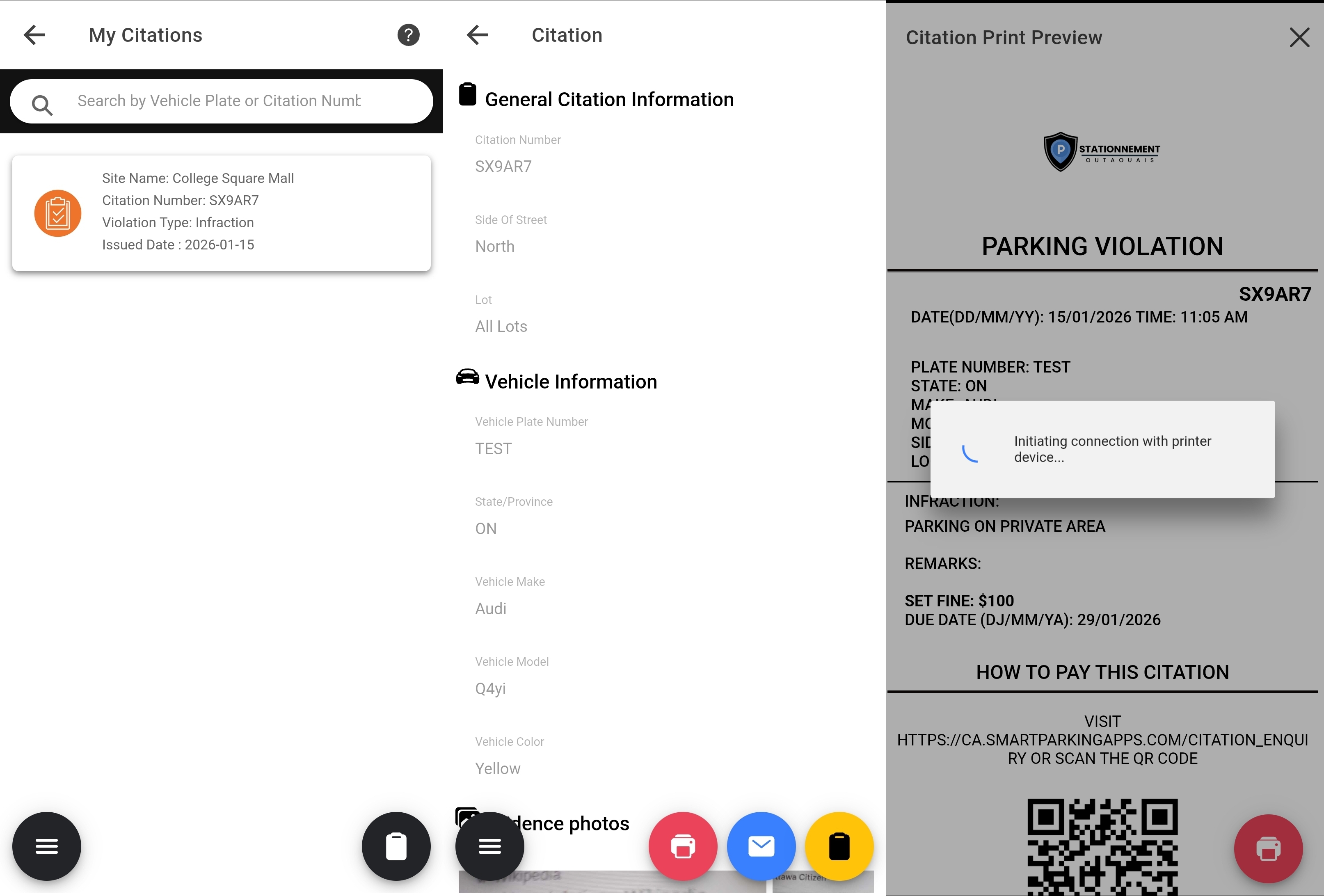
2. Printing a Citation from the Citations List
Once the printer is paired, you can print citations at any time from the app.
Steps
Open the Enforcement Mobile App.
Navigate to Citations.
Select a citation from the list.
Tap Print Citation.
The citation will be sent to the printer immediately.
2. Printing a Citation from the Citations List
Once the printer is paired, you can print citations at any time from the app.
Steps
Open the Enforcement Mobile App.
Navigate to Citations.
Select a citation from the list.
Tap Print Citation.
The citation will be sent to the printer immediately.
3. Printing Immediately After Creating a Citation
The app also supports instant printing right after a citation is created.
Steps
Create a new citation as usual.
After saving, you will be prompted:
“Would you like to print this citation?”
Tap Print to print.
The citation will be printed automatically.
4. Printed Citation Layout
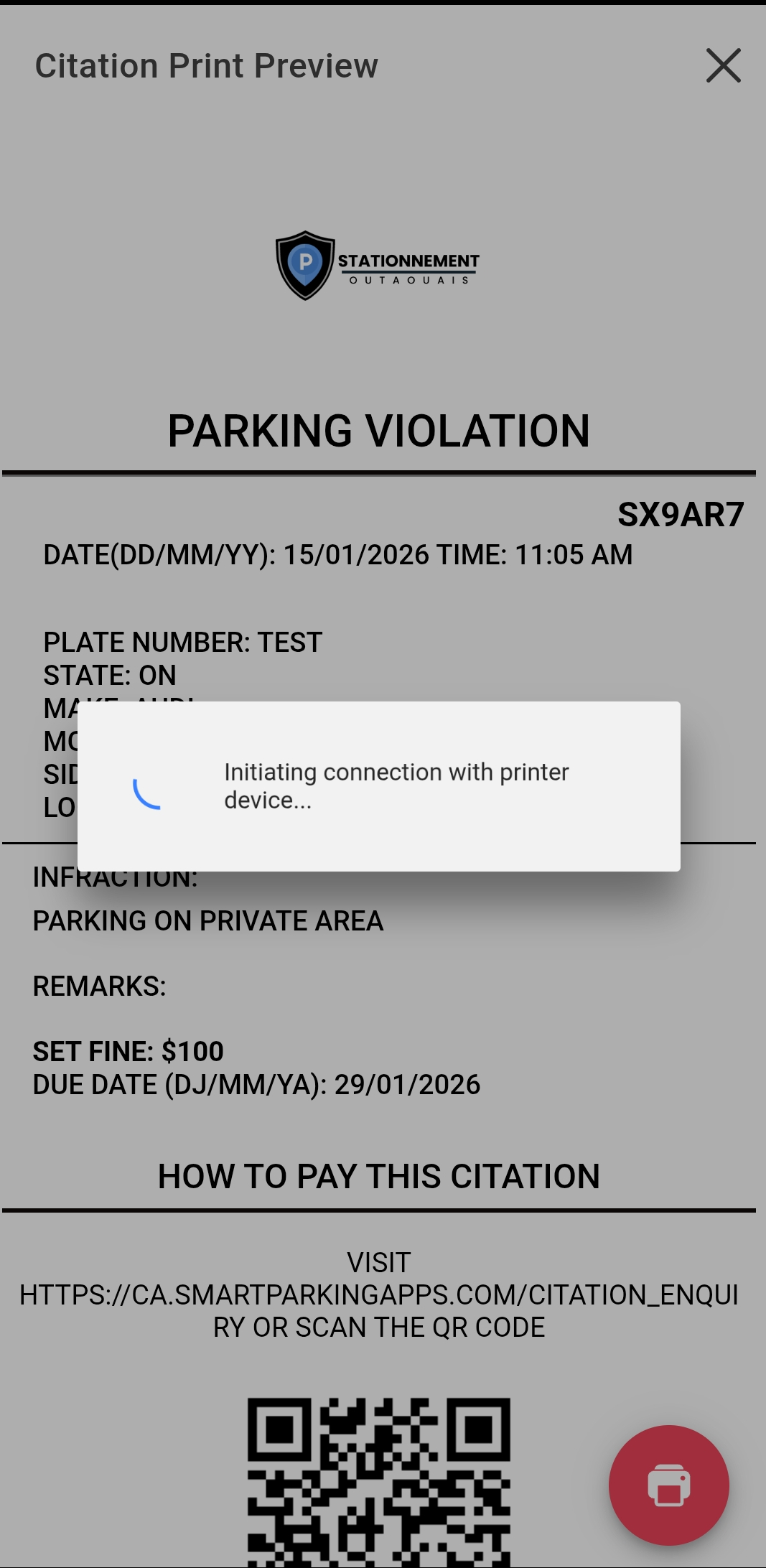
Every printed citation follows a consistent, professional layout.
What’s Included
Your company logo displayed at the top
Citation details (date, time, location)
Vehicle information
Violation details
Officer/enforcement information
5. Tips & Notes
Ensure the printer is powered on and connected before printing.
If printing fails, check Bluetooth connectivity and retry.
Only thermal paper designed for the SPP-310 should be used.
No ink or toner is required.