
Snap is the live camera mode that reads license plates, sends each frame to the server for recognition, and shows pass status, vehicle details, history/risk, and optional enforcement actions (citation or ban) without leaving the patrol flow.
What you should know before your first shift
Site first. Snap uses the currently selected site (name appears in the top bar). Rules, violations for citations, and remarks come from that site. If no site is selected, the app will prompt you to choose one.
Location matters. The app asks for GPS so scans can be logged accurately and so “last patrol” vs “this scan” maps work. If location is off, you may see a prompt to open Settings.
Network. Each successful plate read talks to the server. Weak signal can delay or fail a read; the UI stops showing “identifying” after about 10 seconds so the screen does not stay stuck.
The main screen at a glance
The screen is split into three ideas:
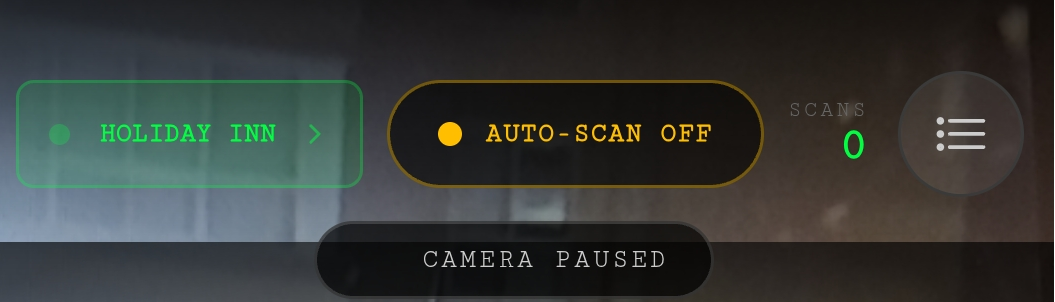
Top HUD — site, auto-scan, scan count, and history shortcut.
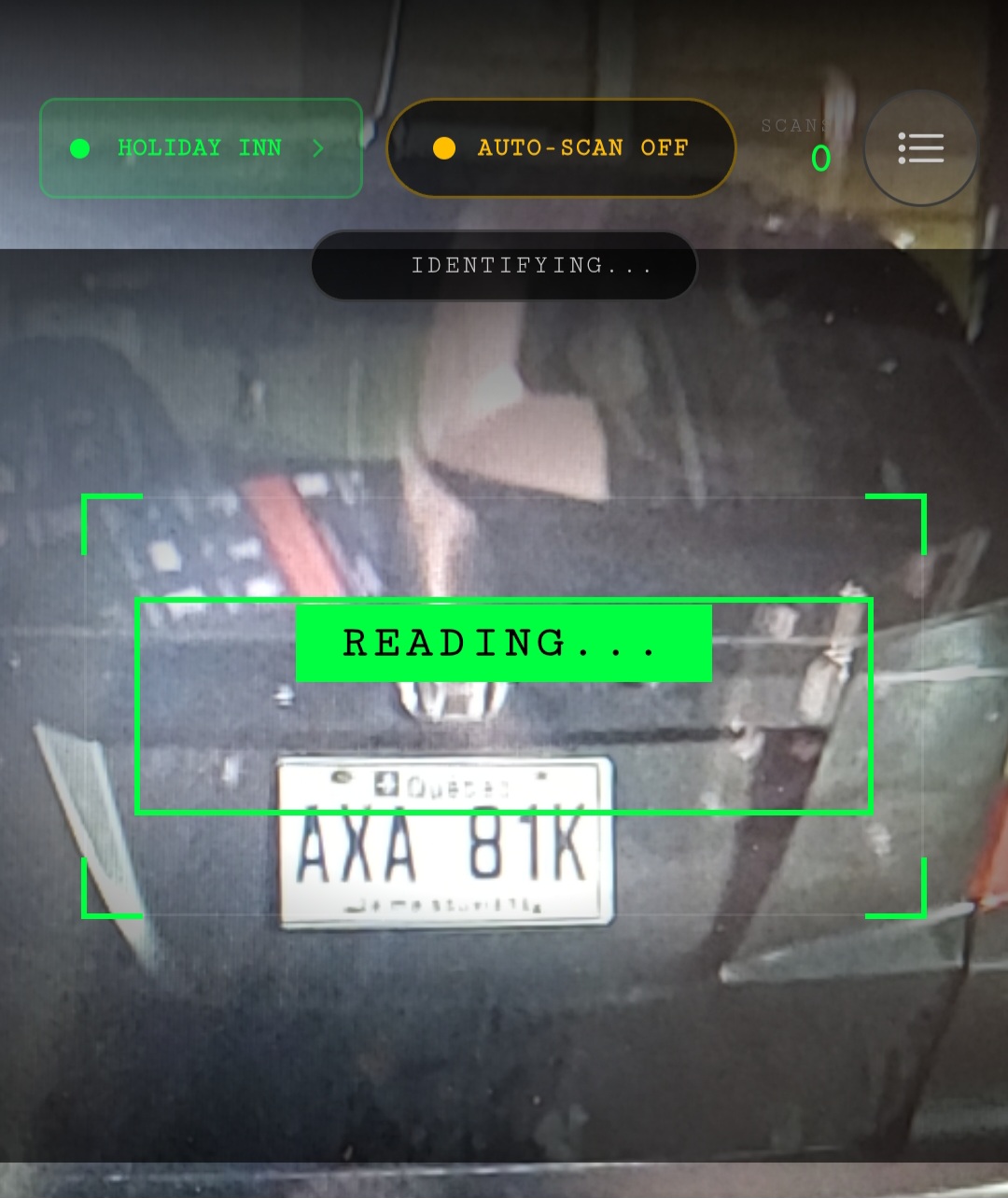
Middle viewfinder — where you aim at the plate; shows READING… or the last plate text while the system works.
Bottom panel — Recent scans list (newest on top). Before any reads, you see a short “Ready to scan” message.
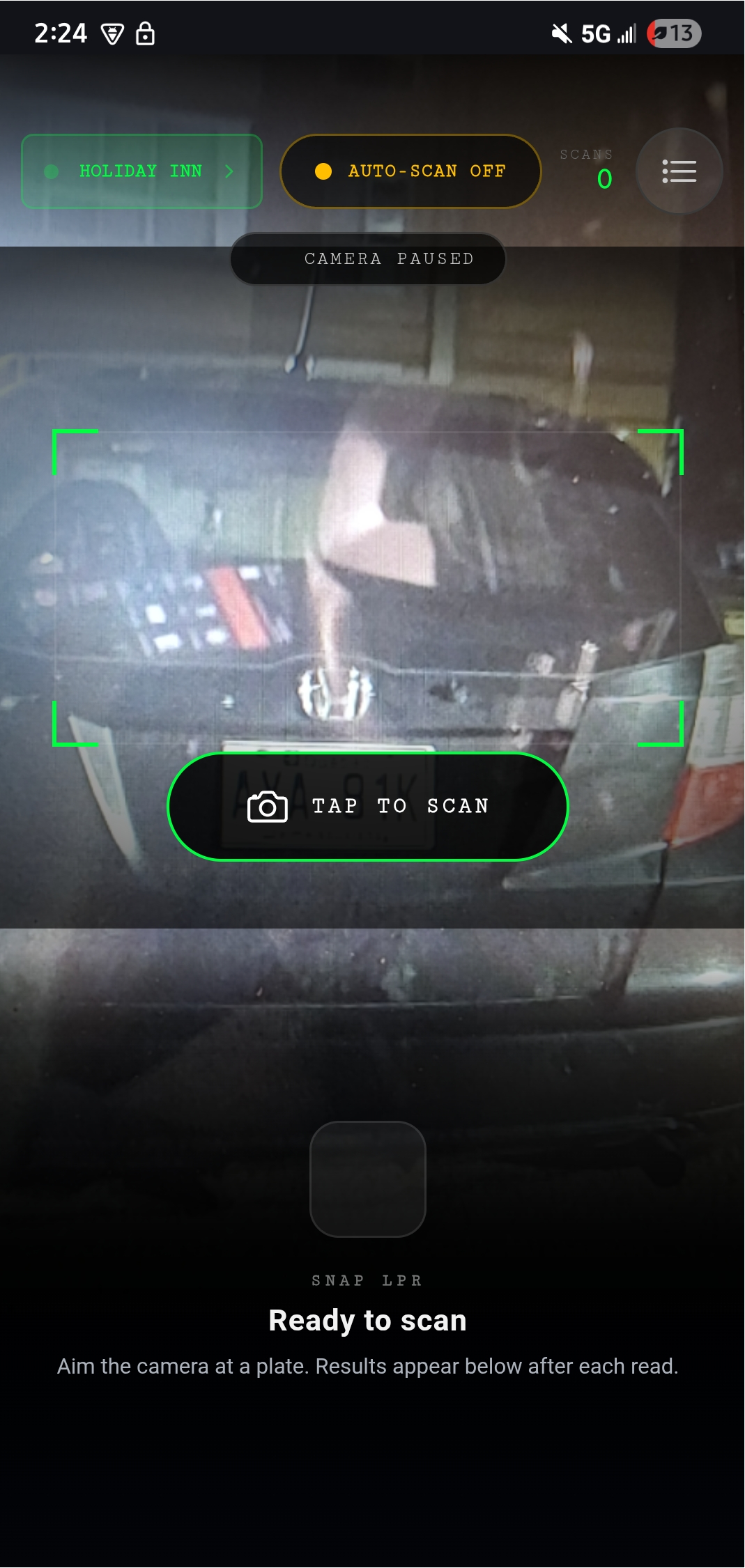
Top bar: site, auto-scan, scans, history
Control | What it does |
|---|---|
Site name (green chip) | Tap to change site (e.g. different lot). Violation list and site remarks refresh when the site changes. |
AUTO-SCAN ON / OFF | On: the app takes repeated snapshots on a fixed interval and sends suitable frames for recognition. Off: auto capture stops; you use TAP TO SCAN instead (see below). |
SCANS | Count of successful cloud reads in this session (resets when you leave Snap or stop the session in a way that clears the counter). Useful to see how many plates you have actually processed. |
List icon | Opens Snap history (past detections for your account). The badge can mirror the session scan count. |
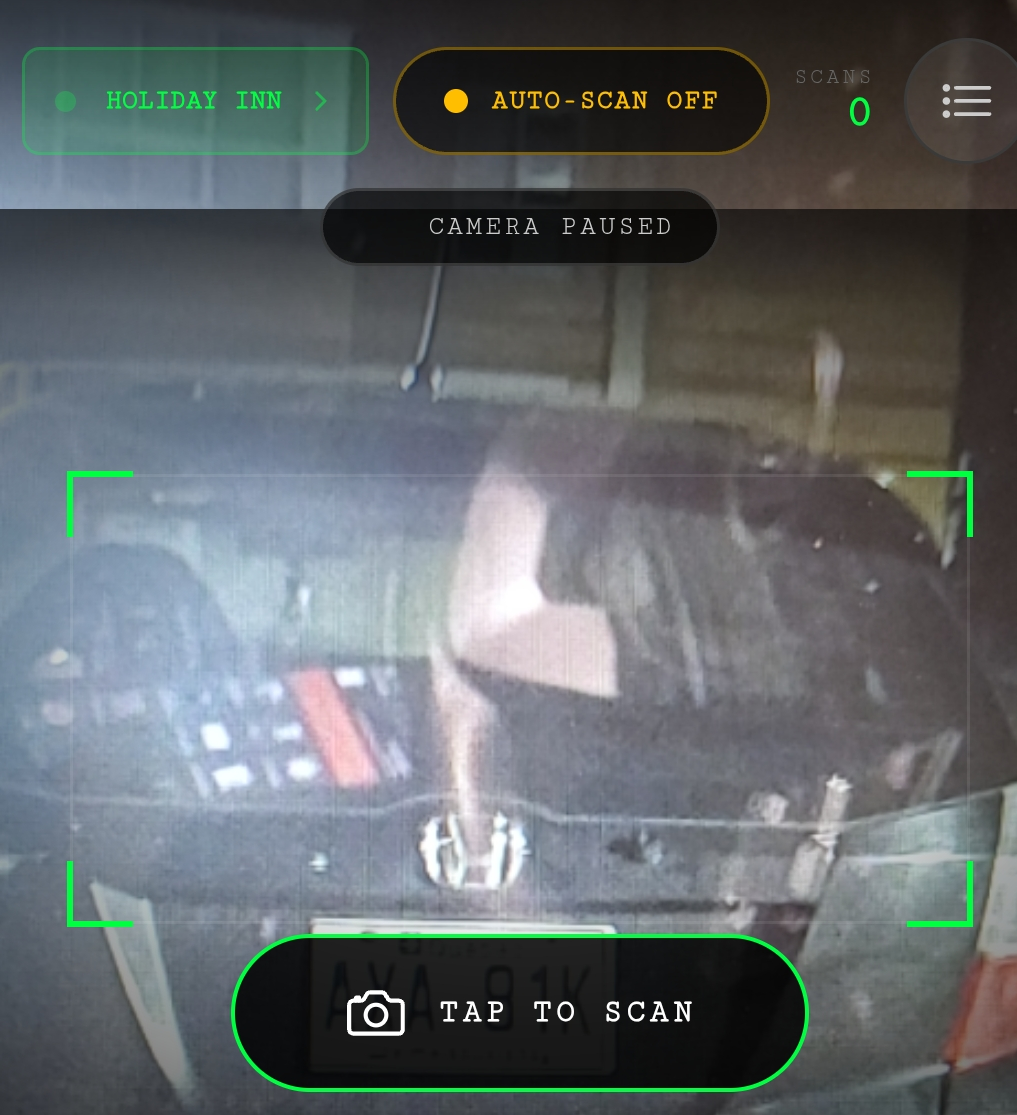
When auto-scan is off or a read is in progress, a small status line can show CAMERA PAUSED or IDENTIFYING… (with a spinning icon).
How scanning works (two modes)
Auto-scan (recommended for patrol)
Turn AUTO-SCAN ON.
Aim the rear camera at the plate so it sits in the framed area.
The app repeatedly captures; not every frame is sent — empty or featureless shots can be skipped locally to save data and battery.
When a plate is recognized, the viewfinder briefly shows the plate (or READING… while working), and a card appears in Recent scans.
Manual single shot
If AUTO-SCAN is OFF, tap TAP TO SCAN to take one snapshot and run recognition. Same pipeline as auto-scan, but you control each shot.
Feedback: sound and vibration
When a result comes back (device supports it):
Valid pass: shorter vibration and a success tone.
No valid pass: different vibration pattern and an error tone.
Banned or high-risk: an alert tone.
This helps when you are not looking at the screen.
Recent scans — what each card tells you
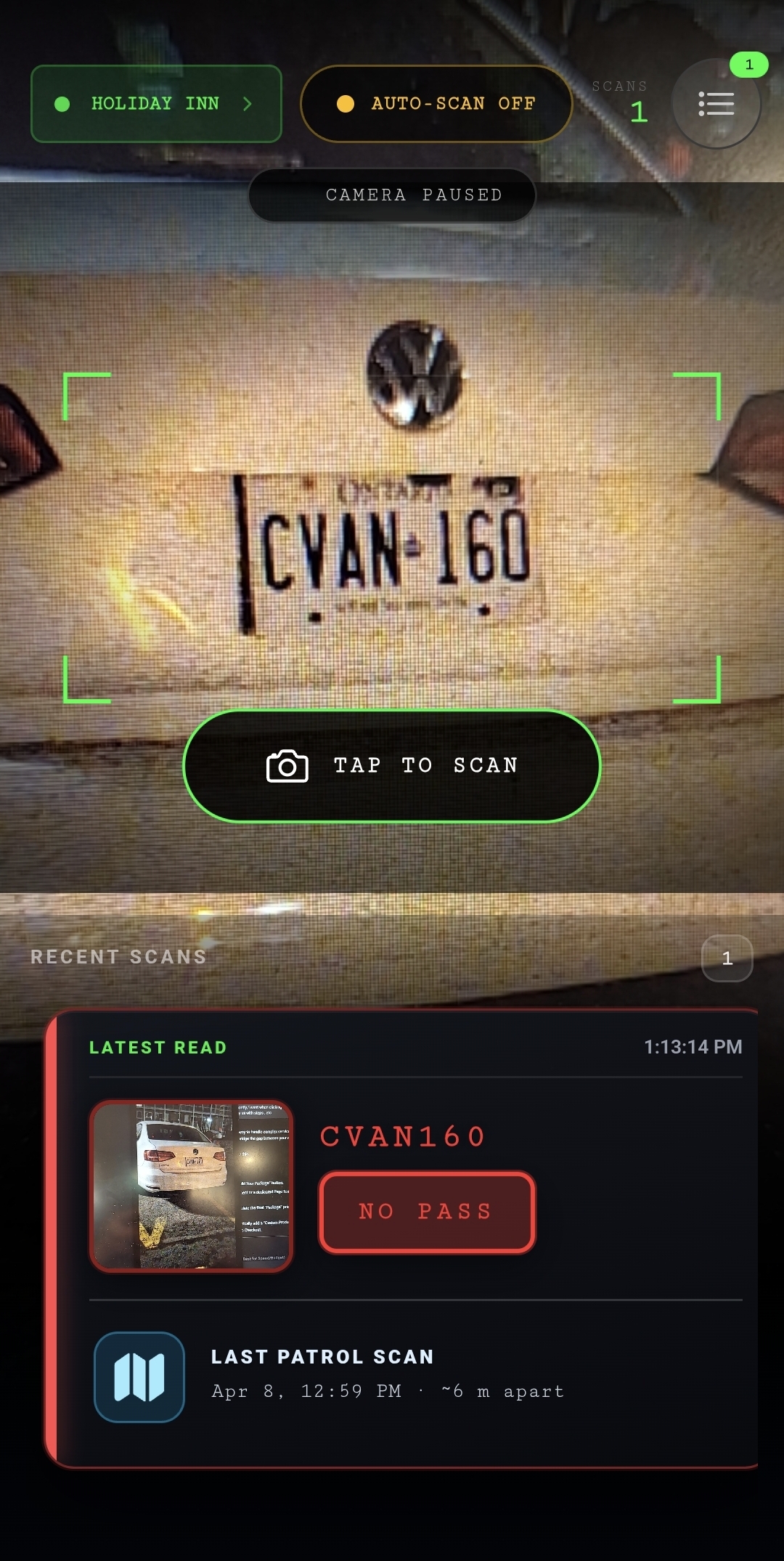
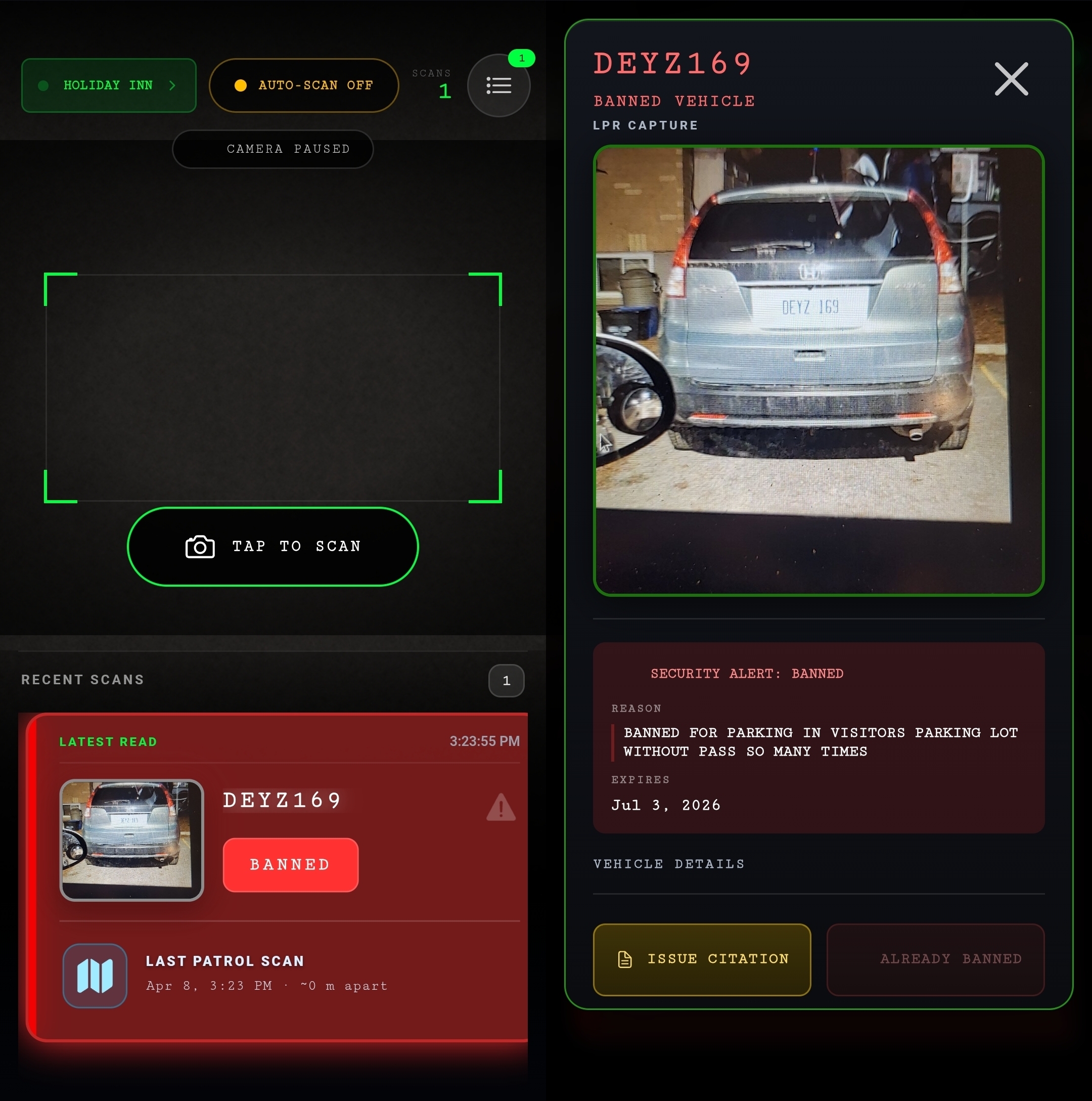
Cards are ordered newest first (you can scroll for earlier reads in this session). The top card is labeled Latest read and shows the time of that capture.
On each card you typically see:
Thumbnail — image from that scan.
Plate — read text (large, easy to read at night).
Status pill — VALID, NO PASS, or BANNED.
Expiry hint — for valid passes, a time or PERM (permanent), depending on data.
Unit — when the pass is tied to a unit.
Risk chip (when applicable) — short text such as repeat/unpaid/recent activity, based on history.
Banned vehicles may use stronger colors and warning styling so they stand out immediately.
Pass status colors (practical meaning)
Green-style (valid): pass is currently valid (and not treated as expiring soon).
Amber / warning-style: pass is expiring soon (within about one hour of end time in the app logic).
Red-style (no pass): no valid pass for this site/read.
Banned: special alert styling — treat as a security/ban situation, not only “no pass.”
“Last patrol scan” and the map
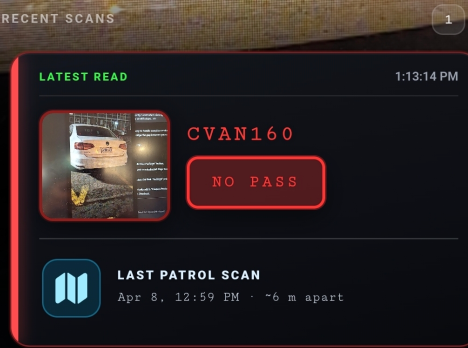
If the system has a previous patrol location for this plate and your current GPS is valid, the card can show a Last patrol scan row: date/time and approximate distance from that point to this read.
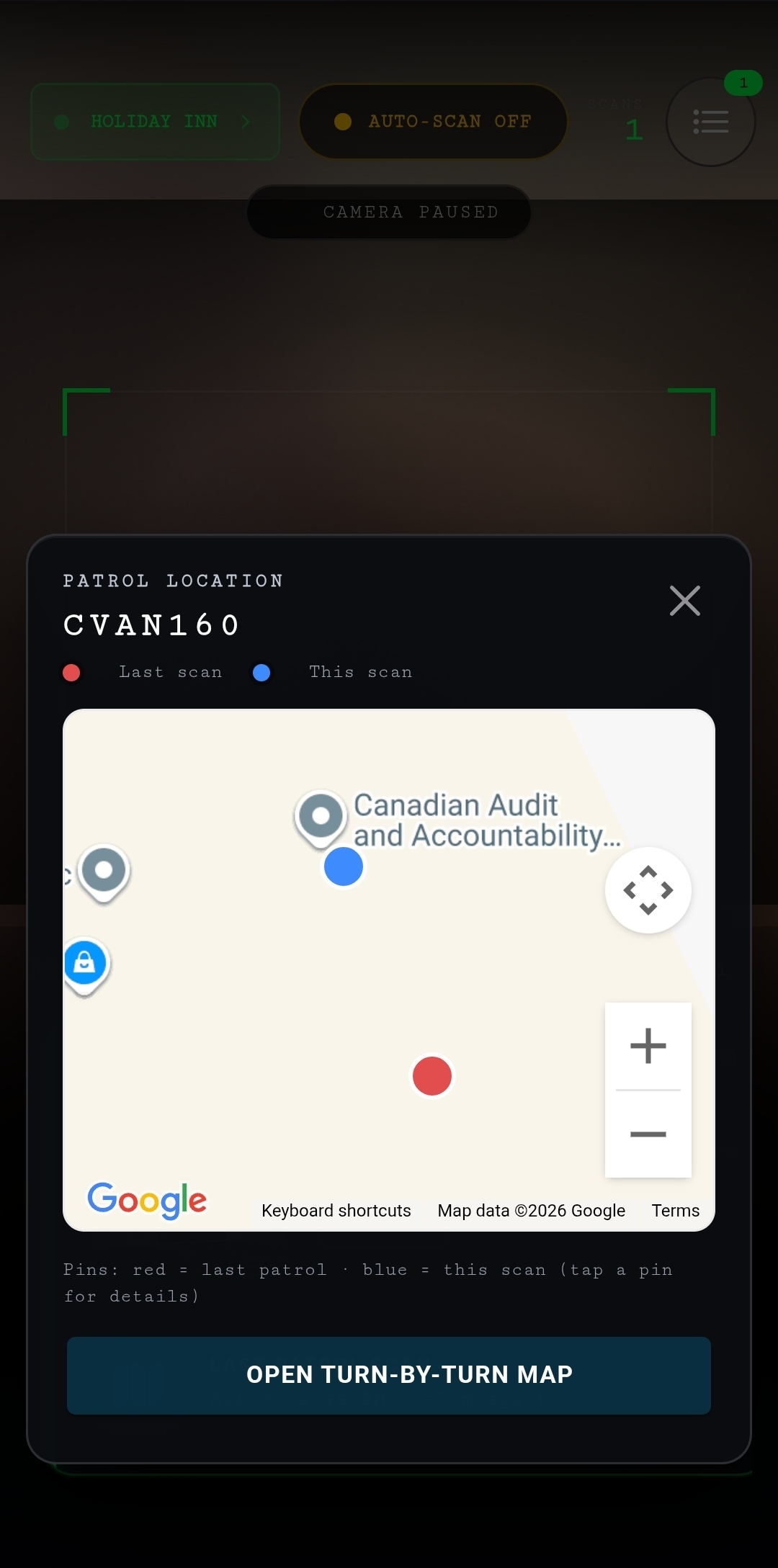
Tap that row to open a map with two pins:
Red — last patrol
Blue — this scan
You can open turn-by-turn directions in the device browser. Closing the map resumes auto-scan if it was running before you opened the map.
If GPS or prior location is missing, the app may tell you that both are required for the map.
Opening a plate — detail sheet
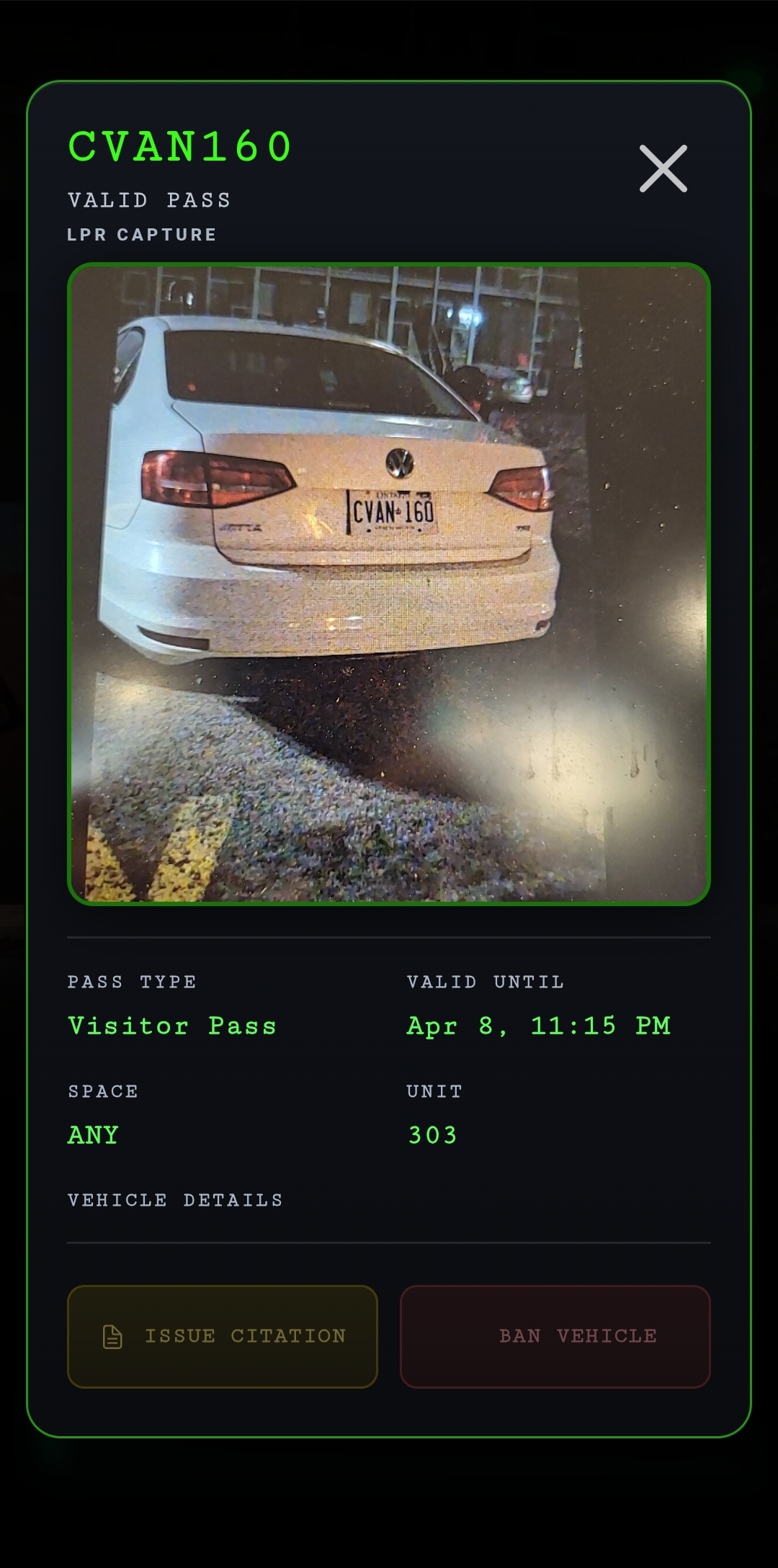
Tap a card (not only the map row) to open the detail sheet. Scanning pauses while the sheet is open so you can read and act without new captures piling up.
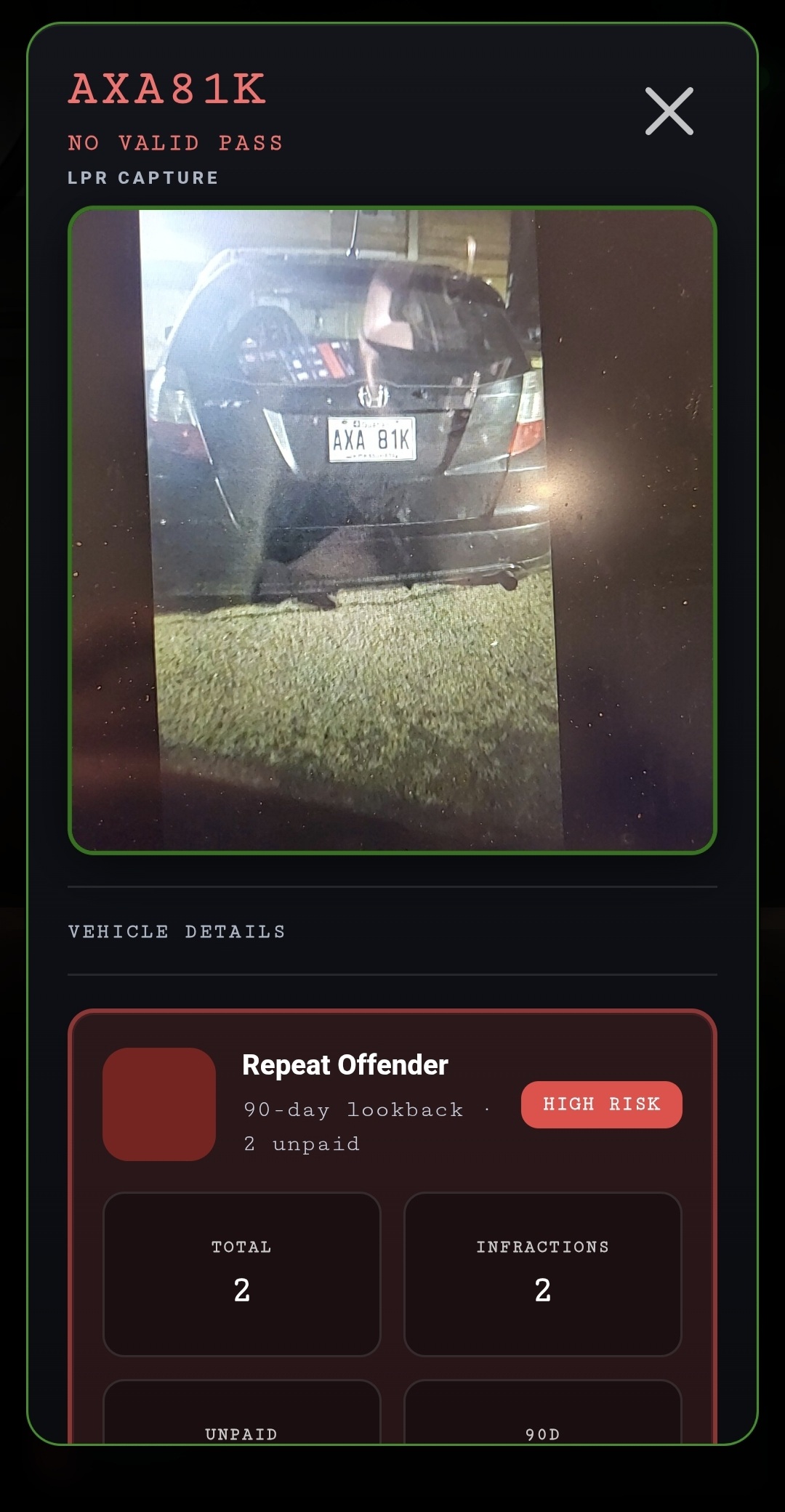
The detail view can include:
LPR capture
A large LPR capture image — the same frame used for the read (evidence of what was scanned).
Status line
Large plate and a subtitle such as VALID PASS, NO VALID PASS, or BANNED VEHICLE.
If the vehicle is banned
A security alert block with reason and expiry (or permanent).
If there is a valid pass
Pass type, valid until (or permanent), space (or “ANY”), unit.
Vehicle details
Make, model, and color when available.
History / risk (when not “neutral”)
A risk section may show:
Title and lookback period (e.g. 90 days).
HIGH RISK badge when applicable.
Stats such as totals, infractions, unpaid, and recent activity in the window.
Recent citations list with date, reason, and PAID / UNPAID when provided.
Actions: citation and ban
At the bottom of the detail sheet (main view, not inside sub-forms):
ISSUE CITATION — Available when there is no valid pass (and workflow rules allow it). Disabled if the read shows a valid pass (you cannot cite a clearly permitted vehicle from this flow).
BAN VEHICLE — Available when there is no valid pass and the vehicle is not already banned. Disabled for valid pass or already banned.
Tapping either switches to an in-place form so you stay on Snap.
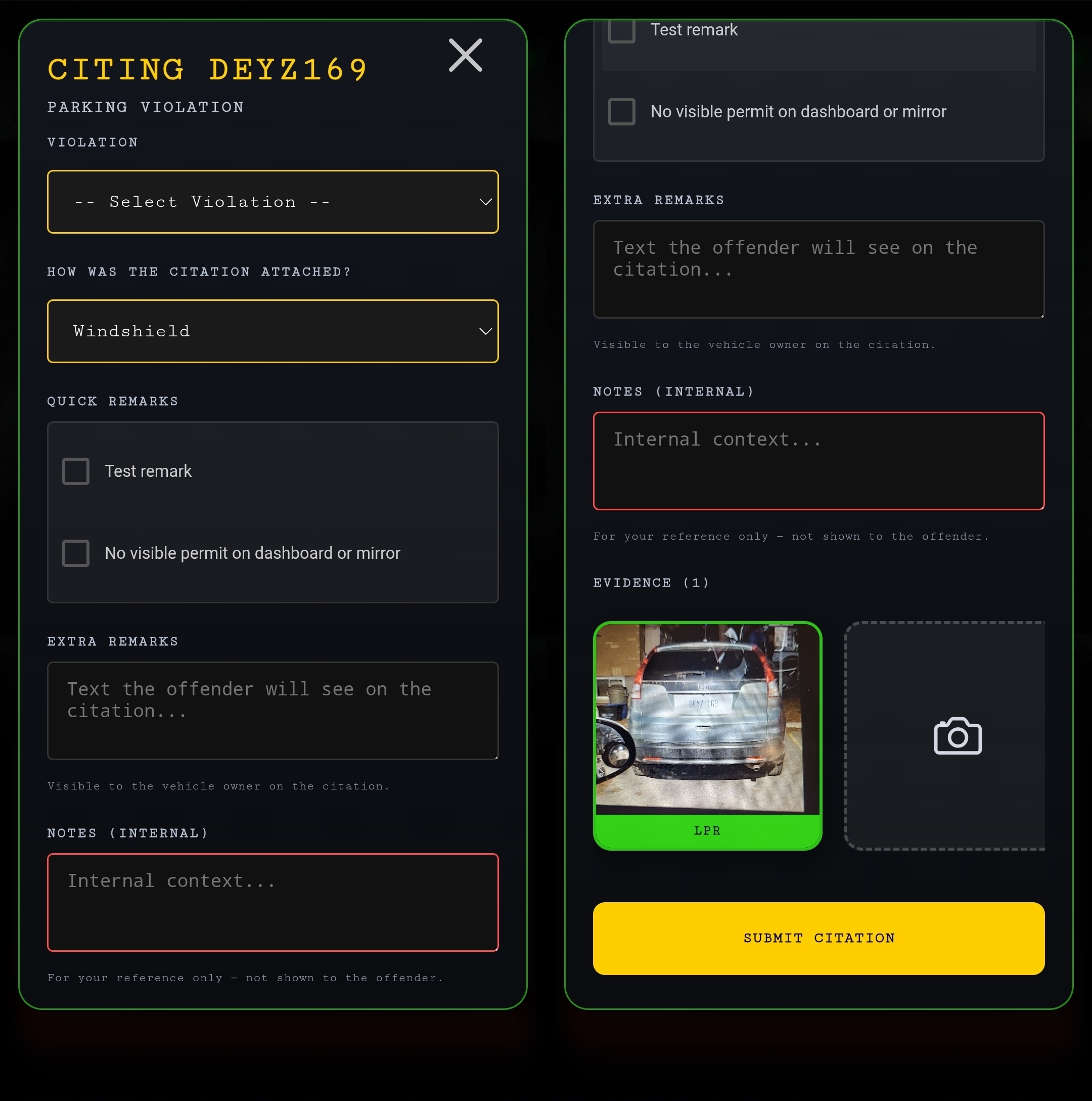
Citation form (summary)
Choose violation (and fee) from the site list.
Choose how the citation was attached (e.g. windshield, handed to driver).
Optional quick remarks (checkboxes from the site).
Extra remarks — text the vehicle owner can see on the citation.
Notes — internal only, not shown to the owner.
Evidence — the LPR image is included automatically; you can add more photos from the camera and remove extras if needed.
Submitting creates the citation; you may be asked whether to open print preview immediately.
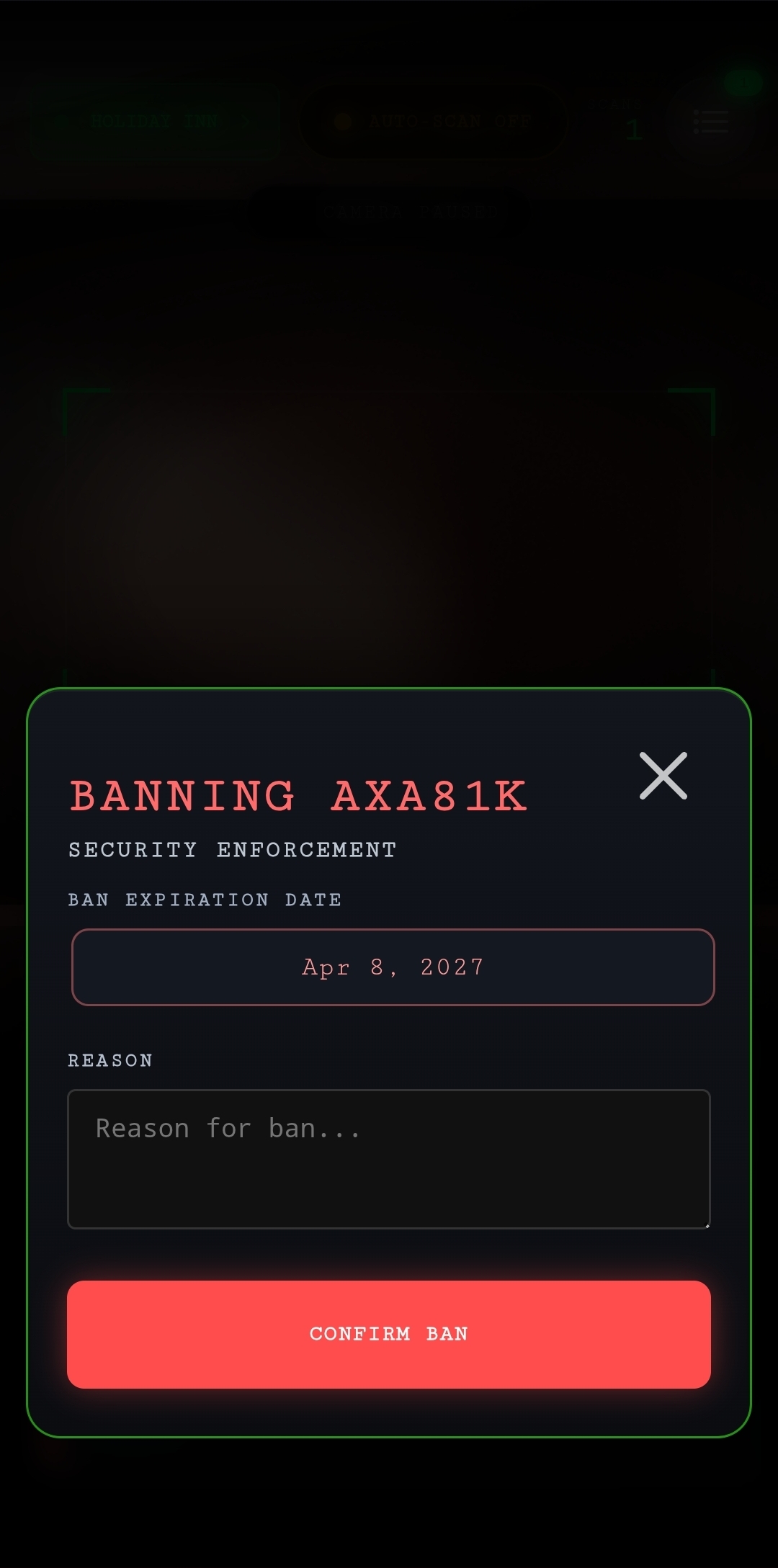
Ban form (summary)
Ban end date
Reason (required)
Submit sends the ban for this plate at the current site.
Closing the detail sheet
Tap X to close. That clears the open forms and evidence buffer and resumes auto-scan if it was on. Use this when you are done with that plate.
Quick troubleshooting
Symptom | What to try |
|---|---|
Nothing happens when aimed at a plate | Toggle AUTO-SCAN or use TAP TO SCAN; move closer; improve light; check signal. |
Stuck on “identifying” then stops | Often timeout or network — try again; move to better coverage. |
Wrong site / wrong violations | Tap the site name and select the correct lot. |
Map / last patrol not available | Enable location; ensure a prior scan exists for that plate with stored coordinates. |
Citation / ban button disabled | Matches rules: e.g. cannot cite a vehicle showing valid pass; cannot ban if already banned or pass is valid per button rules. |