
The Vehicle Audit feature is the core tool for managing parking compliance and site security. This guide explains how to use the Manual Search and Snap LPR tools to verify vehicle permissions, view citation history, and identify banned vehicles in real-time.
1. Getting Started: The Audit Module
After logging into the application, you will see your primary operations tiles.
Locate the "Audit" Card: On your main dashboard, tap the card labeled Audit.
Select Your Site: If prompted, confirm the site location where you are currently performing your patrol.
2. The Audit Dashboard Overview
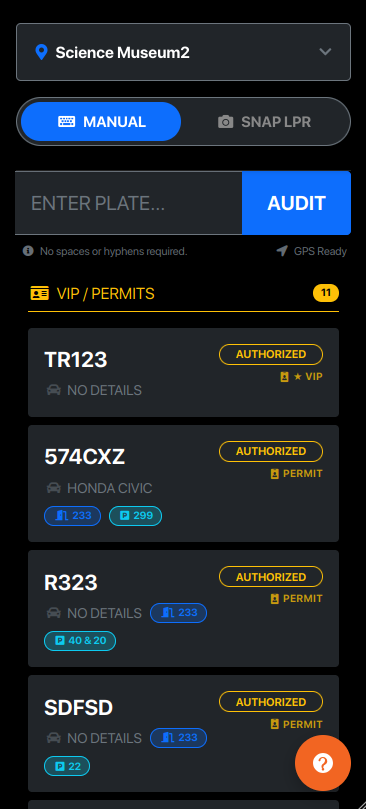
Once inside the Audit module, the system provides a real-time summary of the property's current "Known" vehicles.
VIP / PERMITS (Yellow): Active residents, staff, and long-term permit holders.
ACTIVE VISITORS (Green): Vehicles currently registered via the guest portal or daily parking.
BANNED / FLAG LIST (Red): Vehicles restricted from the property. Tap these cards for specific security notes.
3. Manual Plate Search
The manual search is designed for accuracy. To audit a vehicle manually:
Enter Plate: Type the license plate into the search bar.
Note: The system automatically removes spaces and hyphens and capitalizes letters for you.
Execute Audit: Tap the AUDIT button or press Enter.
GPS Verification: The system will capture your current coordinates to verify where the audit took place.
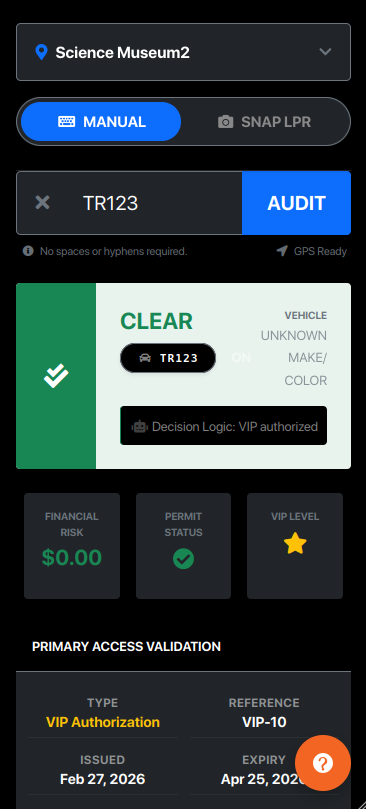
Returning to the Inventory
To clear your search and return to the main VIP/Visitor lists, simply tap the "X" icon located inside the search bar. This resets the view instantly.
4. Using Snap LPR (License Plate Recognition)
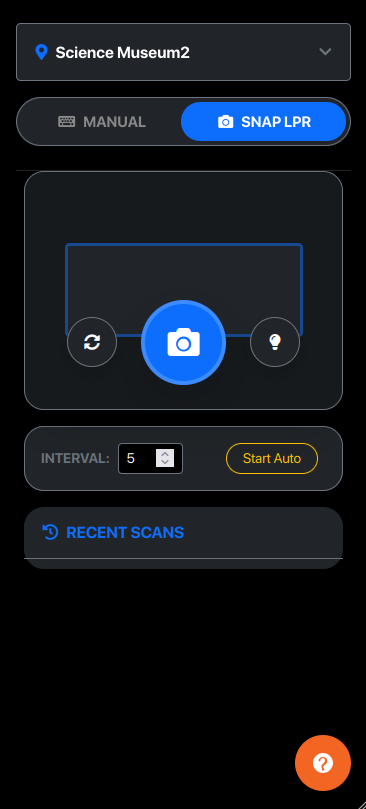
For faster processing, use the Snap LPR tab to scan plates using your device's camera.
Alignment: Position the vehicle’s plate within the blue target box on your screen.
Capture: Tap the Camera Icon to take a snapshot.
Auto-Scan (Optional): Toggle "Start Auto" to allow the system to scan for plates every few seconds automatically.
Torch/Flash: Use the Lightbulb Icon if auditing in low-light conditions.
5. Understanding Audit Results
When a plate is searched or scanned, the system performs a "Deep Audit."
Access Status
Authorized (Green): The vehicle has a valid permit, active visitor pass, or resident status.
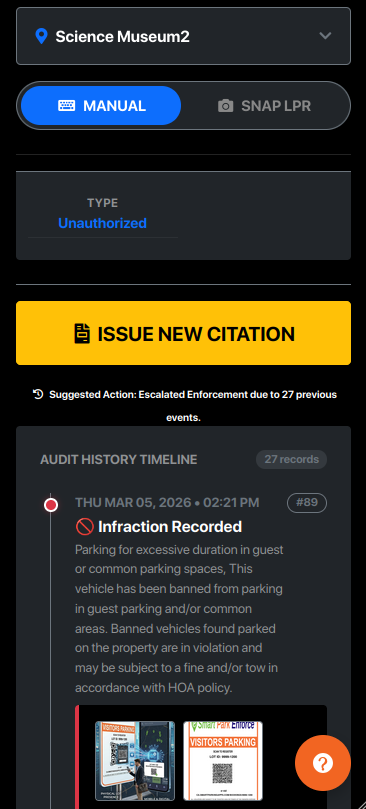
Unauthorized (Red): No record found. Enforcement action may be required.
Banned (Red + Pulse): IMMEDIATE ACTION REQUIRED. The vehicle is on the site's restricted list.
6. Audit History Timeline
The audit results will show a timeline of the vehicle's past behavior at the site, including:
Total unpaid fines.
Previous warnings vs. infractions.
Photographic evidence from past events.
7. Frequently Asked Questions
Q: Why does the GPS icon turn red? A: This means your device's location services are disabled or blocked. Ensure "Location Access" is granted to the browser to maintain audit integrity.
Q: Do I need to type dashes or spaces for plates? A: No. The system is optimized for speed; simply type the letters and numbers.
Q: How do I see more details about a previous ticket? A: In the Audit History Timeline, tap on any record to view the original violation description and attached photos.